
The Discuss platform automatically detects your browser's language and displays the interface accordingly. This article explains how localization works across the platform, consent forms, and the Mobile Screen Share app. It also covers what gets translated, what stays unchanged, how to change your display language, and accessibility options available during live interviews.
Fully Supported Languages
We've fully tested the platform experience in the following languages:
- English
- French
- Spanish
- German
- Italian
- Portuguese (Brazil)
When your browser is set to one of these languages, you'll experience full localization across navigation, menus, buttons, labels, and other platform interface elements.
Additional Supported Languages
The platform also supports many additional languages by automatically using your browser's language. While these languages are supported, they haven't undergone the same level of review as our fully supported languages. You may occasionally notice translation or layout inconsistencies.
If you experience any issues, you can switch to English or change your browser language to a fully supported langugage
Afrikaans
Amharic
Arabic
Armenian
Azerbaijani
Basque
Belarusian
Bengali
Bosnian
Breton
Bulgarian
Burmese
Catalan
Chinese (Simplified)
Chinese (Traditional, Hong Kong)
Chinese (Traditional, Taiwan)
Croatian
Czech
Danish
Dutch (Belgium)
Dutch (Netherlands)
Estonian
Faroese
Finnish
French
Galician
Georgian
German
Greek
Gujarati
Hausa
Hebrew
Hindi
Hungarian
Icelandic
Indonesian
Italian
Japanese
Kannada
Kazakh
Khmer
Korean
Lao
Latvian
Lingala
Lithuanian
Luxembourgish
Macedonian
Malagasy
Malay
Malayalam
Maltese
Marathi
Mongolian
Nepali
Norwegian Bokmål
Norwegian Nynorsk
Pashto
Persian (Farsi)
Polish
Portuguese (Brazil)
Punjabi
Romanian
Russian
Serbian
Sindhi
Sinhala
Slovak
Slovenian
Somali
Spanish
Swahili
Swedish
Tagalog / Filipino
Tamil
Telugu
Thai
Tibetan
Turkish
Turkmen
Ukrainian
Urdu
Uzbek
Vietnamese
Welsh
Yoruba
Zulu
Changing the Platform Language
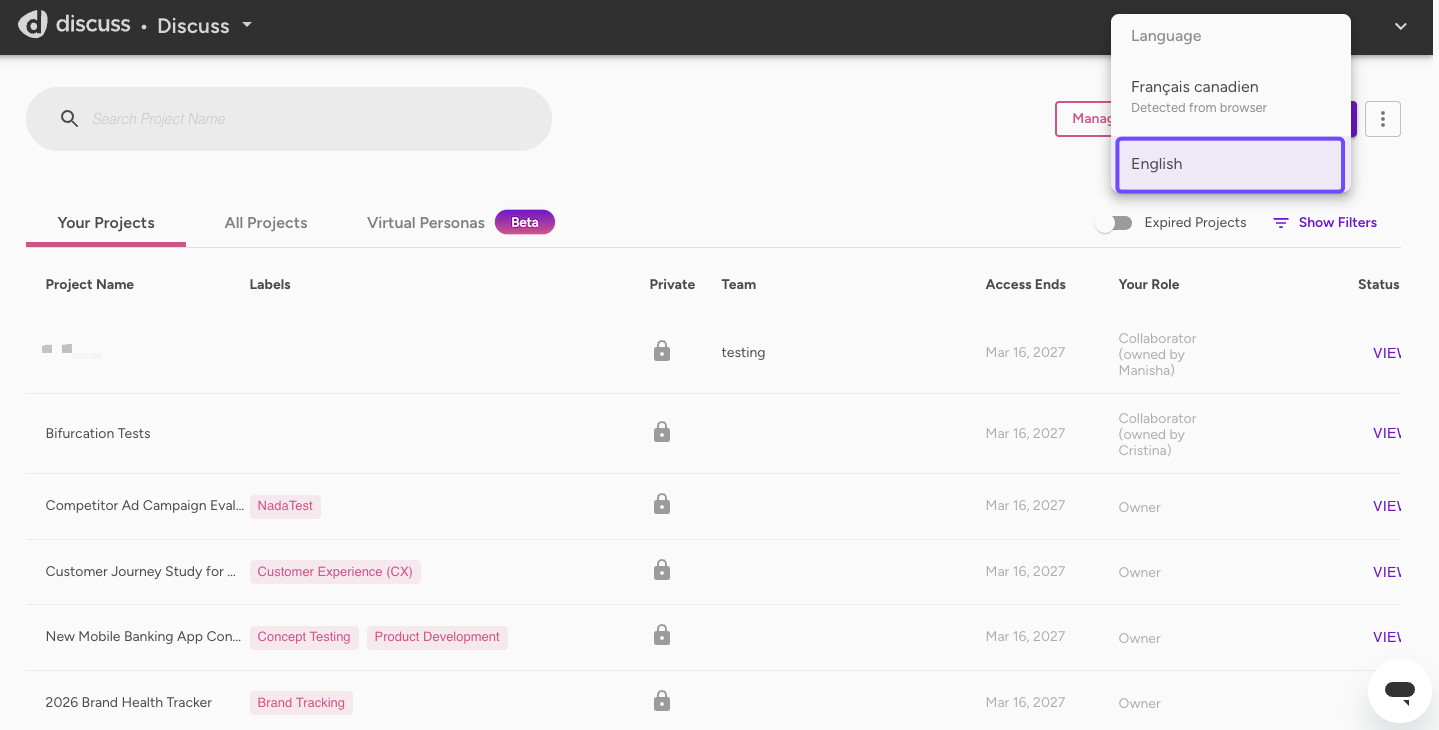
By default, the platform uses your browser's language. But you can switch to English at any moment by clicking the globe button
- Click the globe icon next to your profile name.
- Select your preferred language from the menu.
This only changes the platform interface displayed on your screen. It does not translate user-created content or affect the language of emails you receive.
 What Gets Localized
It helps to think of the platform in two parts.
The platform interface
The platform interface automatically follows your browser's language setting. This includes elements such as:
- Navigation menus
- Buttons
- Labels
- Dialogs
- Other platform interface elements
The respondent experience also follows the respondent's browser language, including:
- Sign-up page
- Respondent Readiness Guide
- Waiting room messages
- Meeting room interface
- Consent form instructions
These interface elements change automatically when the browser or platform language changes.
Content Created by You and Your Team
Content created by you or your team always remains in the language in which it was originally written. This includes:
- Discussion guides
- Interview questions
- Research goals
- Labels
- Notes
- Responses
- Uploaded consent forms
- Invitation emails written by your team
- Any other content created or uploaded by you or your team, including documents and stimuli.
Changing your browser or platform language never translates this content. Only the surrounding platform interface changes.
Consent Form Localization
Uploaded consent forms remain in the language in which they were created. Only the instructions surrounding the form are localized based on the person's browser language.
In the example below, the consent form is written in English, while the person completing it has their browser language set to French. As a result, the form content stays in English, but the instructions appear in French.
Chinese (Simplified)
Chinese (Traditional)
Danish (Denmark)
Dutch
English (United Kingdom)
English (United States)
Japanese
Spanish (Latin America)
Spanish (Spain/Iberia)
French (France)
Korean
Swedish (Sweden)
German (Germany)
Malay (Malaysia)
Polish
Indonesian (Indonesia)
Norwegian (Bokmål)
Thai (Thailand)
Russian
Ukrainian (Ukraine)
Mobile Screen Share Localization
The Mobile Screen Share app automatically uses the language set on the respondent's mobile device, provided that language is supported. If the device language isn't supported, the app defaults to English.
Arabic
Bahasa (Indo)
Filipino
French
German
Italian
Japanese
Korean
Spanish
Mandarin
Portuguese (Brazil)
Russian
Thai
Vietnamese
Accessibility with Live Captions
Improving Accessibility in Discuss Interviews by Enabling Live Captions
For users who would like captions during a live interview to support broader accessibility, you can enable the Google Chrome Live Captions option to add this to your Discuss interview experience. This setting will only change for your window and experience and will not impact or show for anyone else in the meeting room.
- How it Looks in the Discuss Platform
In the Discuss platform, a box will show on your screen displaying live captions for anyone speaking during the interview. Whether you join the meeting room as a Respondent or a Moderator, you'll see the captions as long as you're not the one speaking. Additionally, audio and video content with audio stimuli will be captioned.
Note: Captions are not generated for your own audio stream; they are only displayed for others' speech.
Example of a discussion with the Live Caption enabled in Google Chrome
- Turn On Live Caption in your Google Chrome Settings
Enabling Live Captions is straightforward in Chrome.
- On your computer, open Google Chrome
.
- At the top right, select More
Settings
- At the bottom of the Settings page, select Accessibility and turn on Live Captions
- If needed, you can add and select different languages for the captions.

 Settings
- Turn Off Live Captions in your Google Chrome Settings
- On your computer, open Chrome
- At the top right, select More
Settings.
- At the bottom of the Settings page, select Accessibility
- Turn off Live Caption.
- On your computer, open Chrome